
B2B BUYER PORTAL – USER GUIDE
Beamex B2B Webshop
This guide explains how to use the Buyer Portal of the Beamex B2B webshop. It walks you through signing in, navigating the home screen, managing your orders, invoices and quotes, building shopping lists, placing quick orders, and maintaining delivery addresses. The final section covers the administration features available to portal administrators, including user management. Each step is illustrated with a screenshot from the portal.
Signing In
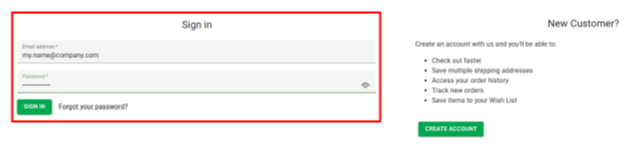
To access the portal, enter your email address and password on the sign-in page and select Sign In, as shown below.

Home Screen
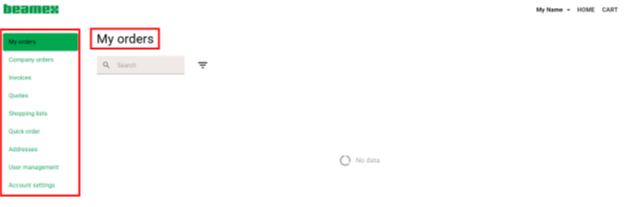
After signing in, you will see your home screen. If you have placed orders before, they appear on the right-hand side of the portal. If not, this area is empty.
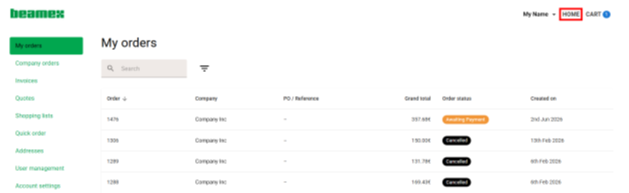
To return to the storefront at any time, select HOME from the top menu.
Orders
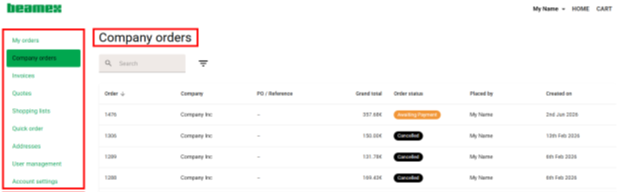
As a portal administrator, you can view both your own orders and your company’s orders.
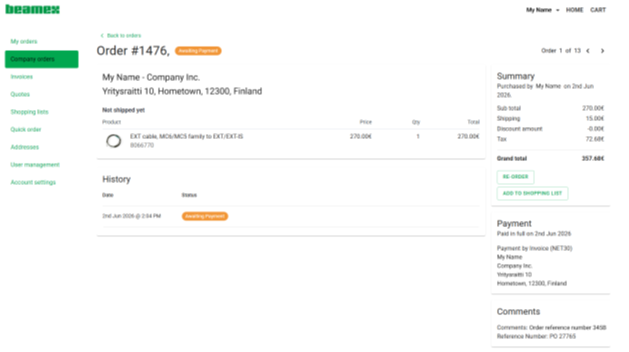
Select any order to view its details, including the products ordered, the delivery and billing addresses, and the current order status. From this view you can also reorder the items or create a new shopping list from them.
Invoices
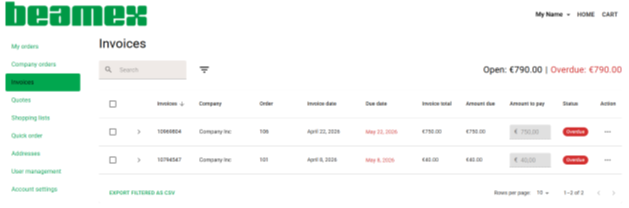
As an administrator, you can view your company’s invoices. This is where you can see open invoices and pay them.
Quotes
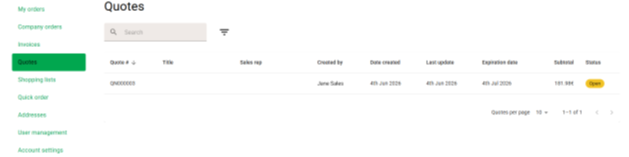
You can access your quotes and open any of them to view its details.
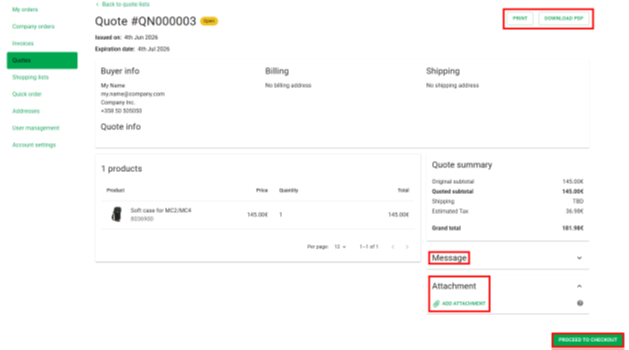
From a quote, you can print it, download it as a PDF, or proceed to checkout. You can also send or read a message and add an attachment.
Shopping Lists
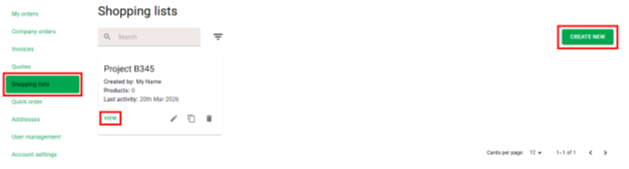
Under Shopping Lists, you can view an existing list or create a new one.
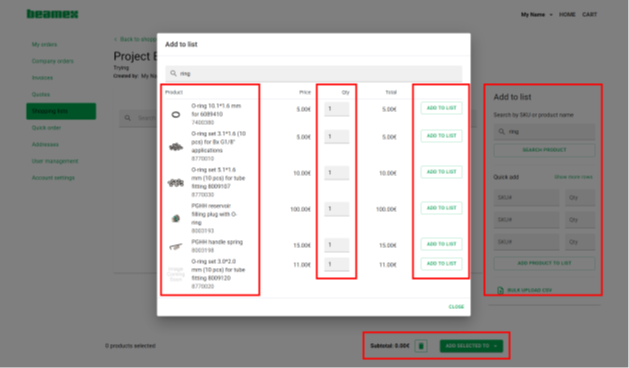
After creating a shopping list, you can add products to it either by searching for them by name or by entering their product codes, and then choosing the quantity for each.
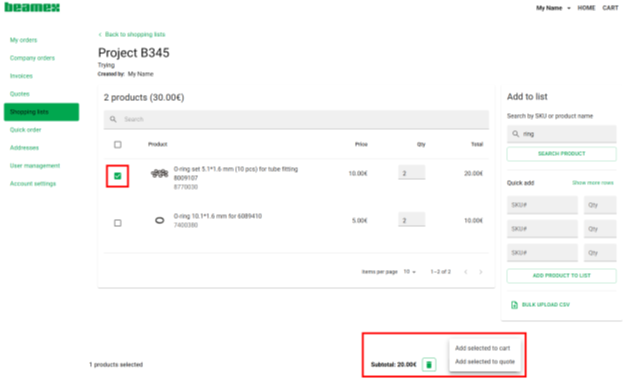
Once products have been added to the list, you can select any of them and add them to your cart or to a quote.
Quick Order
Under Quick Order, you can see products you have ordered before. Select the products you need and choose one of the three options shown below.
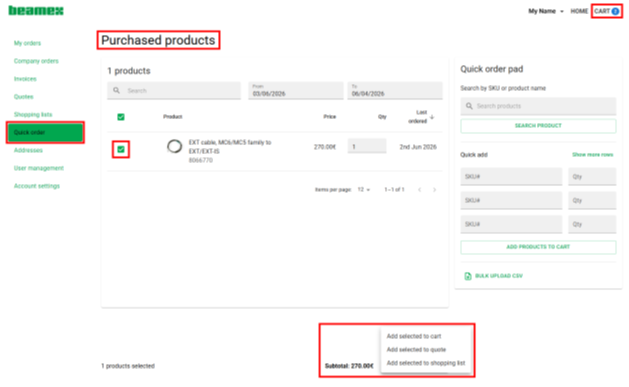
You can add the selected products to your cart, to a quote, or to a shopping list.
Addresses
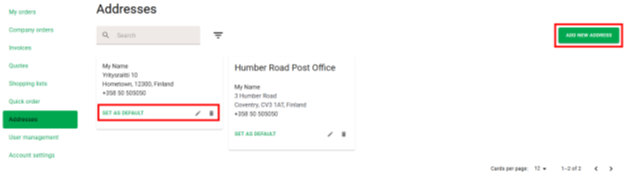
Under Addresses, you can view the addresses you have saved, edit them, add new ones, or set an address as your default.
Administration (Admin Only)
The following features are available only to portal administrators.
User Management
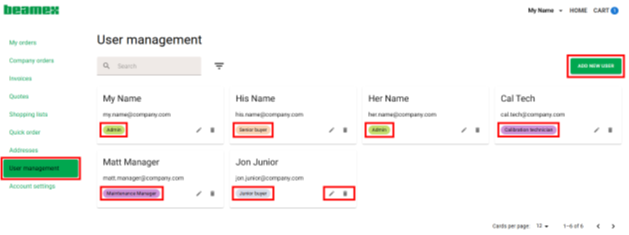
On the User Management tab, you can view existing users, add new users, assign roles, and edit or remove users.
User Roles
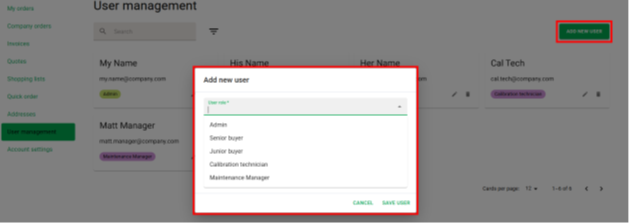
The roles you can assign to users are shown below.
New User Invitation
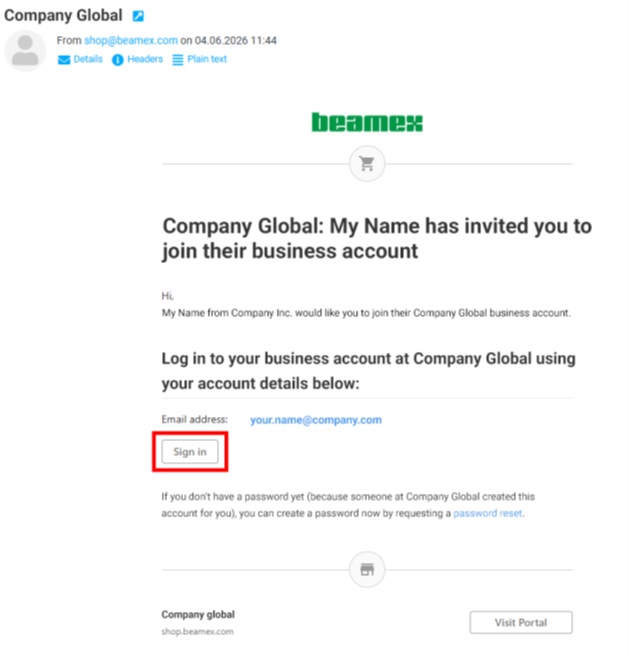
When a new user is added, they receive an email like the one shown below, which lets them sign in to the portal.
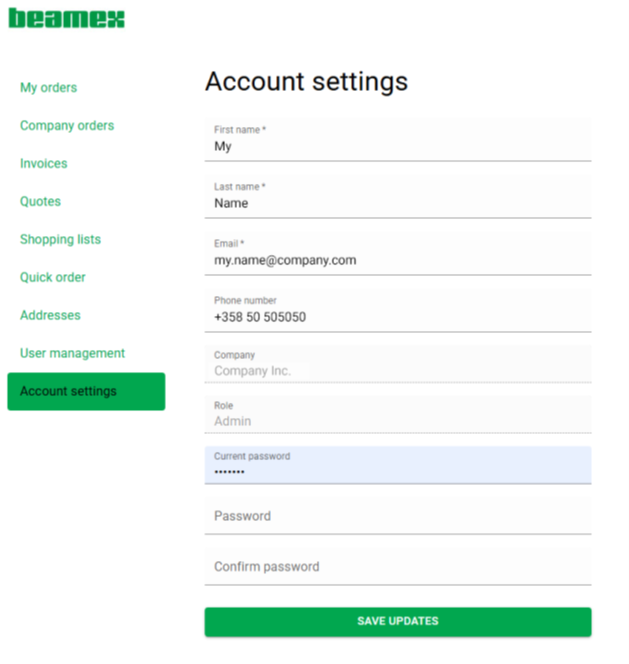
Editing Account Details
You can edit the administrator’s details and save your changes.
QUESTIONS AND ANSWERS:
Q/ What is the difference between the 2 kinds of accounts? "Personal" or "Business" account.
- Personal account = single buyer, simple checkout
- Business account = company-level purchasing with structure, control and tailored terms
Q/ Can I place an order before my account is approved?
A/ Yes you can place an order before your account is approved.
Q/ Do I need to raise a PO to be able to complete my order?
A/ No you don’t need a purchase order to complete your order.
Q/ Where can I enter my PO as a reference?
A/ Enter your PO on the CUSTOMER COMMENT field.
Q/ Can I print my order or shopping cart?
A/ Yes, it is possible by clicking on print. You can save the document as a PDF file.
Q/ What happens if I forget to complete my order?
A/ The system will remind you by sending you a reminder email with a link to your cart.
Q/ Do you always have goods in stock?
A/ Yes, all items sold on WebShop are shelf items.
Q/ When can I expect my order delivery?
A/ Orders are shipped on the next day basis.